![Getfluence_logo_noir-1.png]](https://help.getfluence.com/hs-fs/hubfs/Getfluence_logo_noir-1.png?height=40&name=Getfluence_logo_noir-1.png)
This guide explains how to manage a publication proposal received on Getfluence, from accepting the mission to getting paid.
Step 1: Accepting the mission
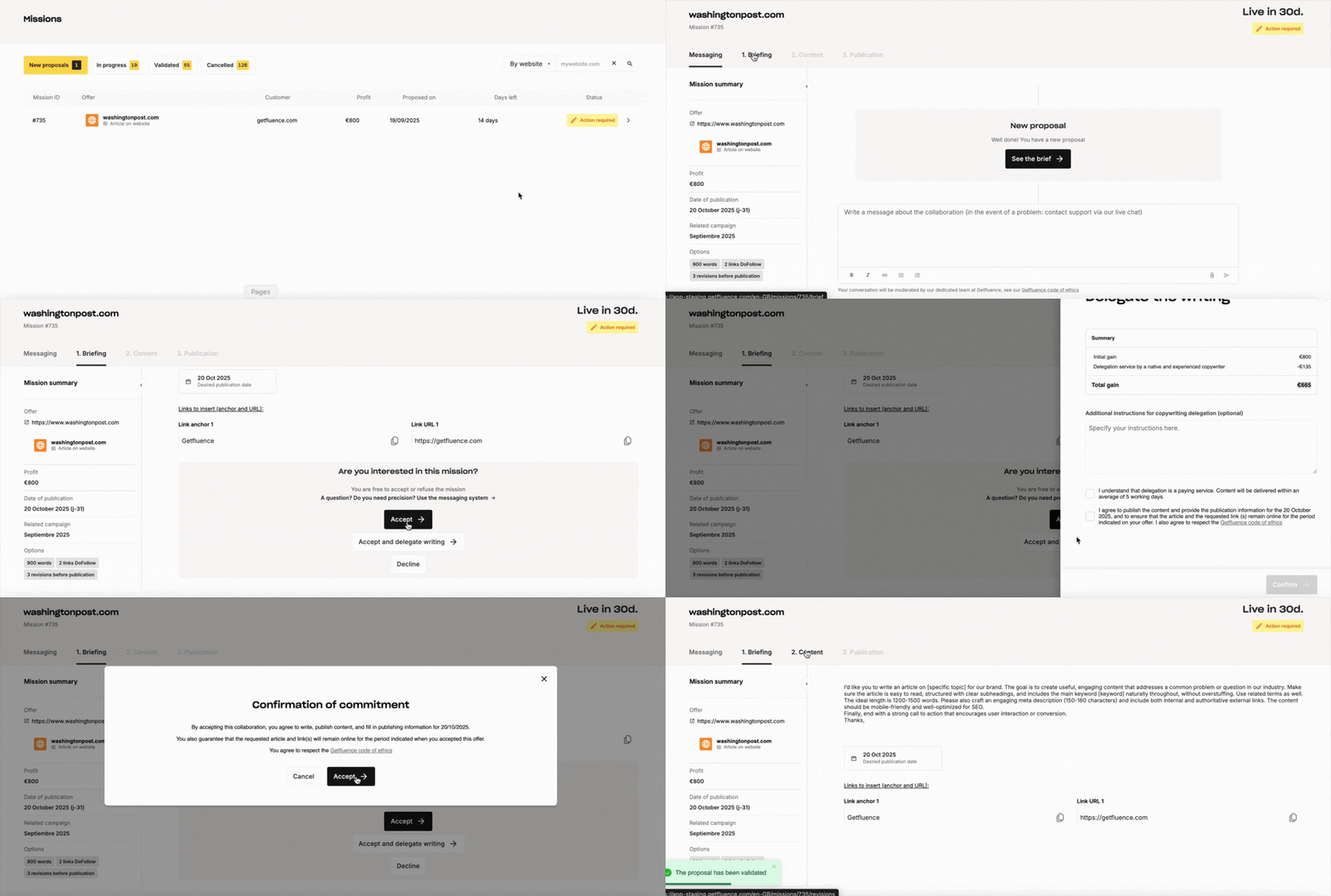
- Log in to your Getfluence account and review the advertiser’s request (writing brief or ready-to-publish content).
- Only accept if you agree with the conditions. You have 7 days to accept or negotiate. After this period, the proposal expires automatically.
- Use the mission messaging to adjust specific points of the brief or to agree on how the content will be delivered.
⚠️ Prices and conditions defined in your offer are non-negotiable. Learn more here.
⏰ Don’t have time to write the content or prefer an expert to handle it? Choose the Content Delegation option (paid option).
Step 2: Content creation
If the advertiser provides the content: Publish it, then insert the link in the Publication tab.
If you need to write the content:
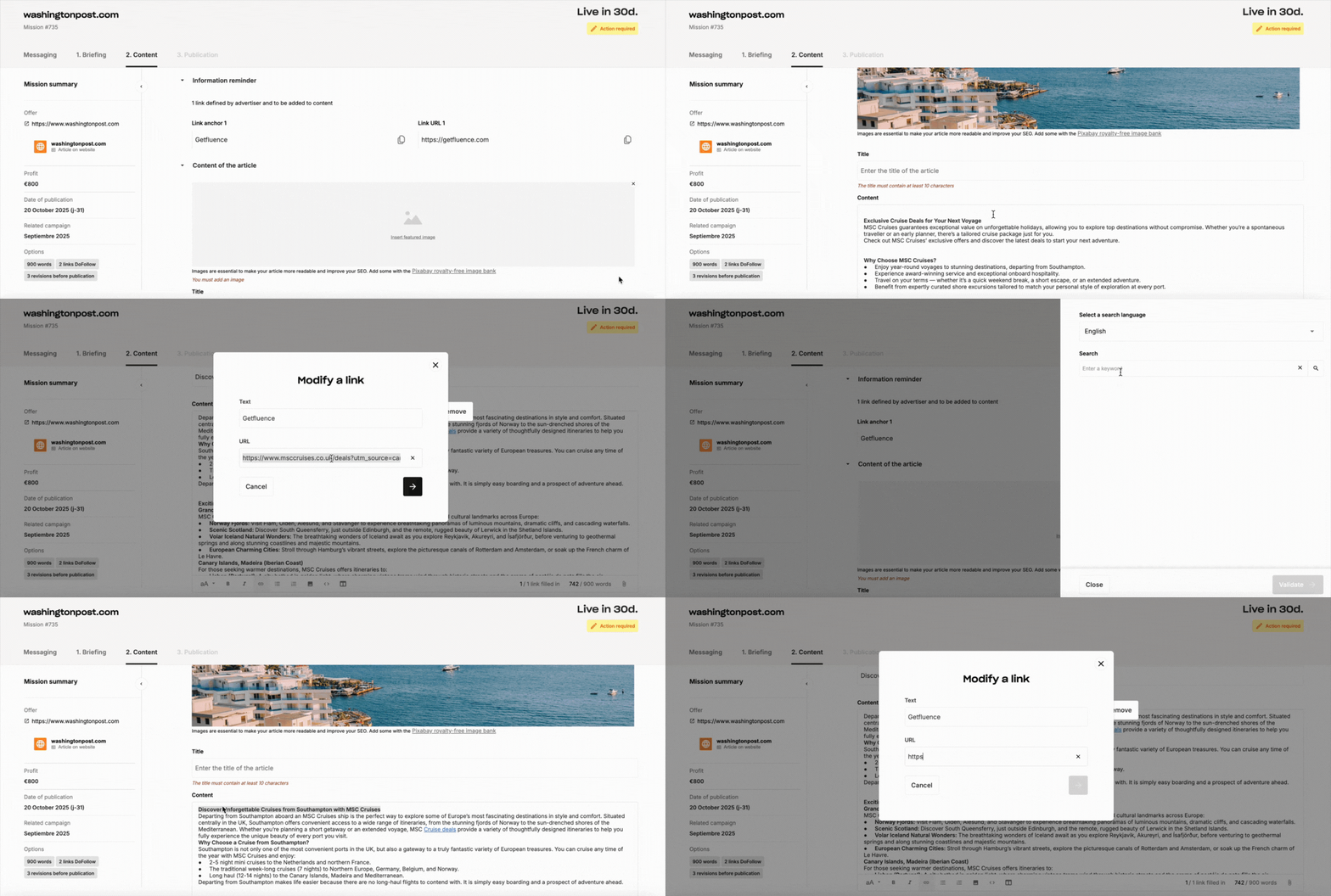
- Carefully follow the brief, anchors and links provided.
- Upload your draft in the Content tab.
- Revise and resubmit the text until the advertiser gives final approval.
Is an image mandatory?
Yes. Every article must include an image*:
- from our royalty-free image bank,
- provided by the advertiser,
- or requested from the advertiser via the messaging.
*Images must be under 2 MB.
Can I change an anchor text or a link?
Anchor text: yes, you can submit your content with a different anchor text. The advertiser will then be free to accept or refuse your proposal. To speed up the handling of the mission, we recommend using the anchor texts requested in the order.
Link (backlink URL): no, the link provided by the advertiser is mandatory and cannot be changed. If the link contains an error, here is how to report it:
- Before accepting the order: contact the advertiser to report the error and request a correction.
- After accepting the order: contact our customer support.
Can I use Google Docs to make corrections easier?
No. The content must be uploaded in the Content section. Using external links may block the mission.
Why does an error message appear when I copy and paste?
This may be caused by imported invisible characters.
👉Solution: type the anchors directly and insert the links using the link button 🔗.
Step 3: Publication
- Once the advertiser has approved the content, the Publication section becomes active.
- Insert the link to the live article there.
⚠️ Important: without a publication URL, the automatic check does not start and the mission remains incomplete.
Step 3b: Meeting publication dates
- Specific date requested: publish only on the scheduled day.
- Early publication not allowed: publishing too early may result in the order being cancelled.
- Immediate publication / as soon as possible: if specified, you can publish as soon as the content is approved. Contact support to update the date if necessary.
Step 4 – After Publication
Automatic check (30 days)
For 30 days, the platform automatically checks that all publication conditions are met (presence of the link, anchor, image, etc.). If an error is detected, review the error details in the Publication tab or see the dedicated FAQ.
Payment
If everything is compliant at the end of the check, the mission is validated and your earnings become available for withdrawal. The time before funds are available may vary depending on your payment method.
👉 Guide to requesting a payment.