![Getfluence_logo_noir-1.png]](https://help.getfluence.com/hs-fs/hubfs/Getfluence_logo_noir-1.png?height=40&name=Getfluence_logo_noir-1.png)
Getfluence now integrates with AI assistants such as Claude via MCP (Model Context Protocol).
Once connected, you can ask your AI assistant to search the media catalogue on your behalf, using natural language instead of manually applying filters on the platform (for example: "find me sites in the finance niche with a DR above 50 and traffic trend increasing"). This is particularly useful when researching offers as part of a broader workflow (content strategy, competitor analysis, campaign planning) where switching to the Getfluence platform would interrupt your process.
If the connector identifies offers matching your criteria, you can add them directly to your cart from within the AI assistant, without navigating to the platform separately. You can also check your account details on request.
How to connect Getfluence MCP on Claude
1. Open Claude and click the "+" icon next to the message box to access additional options ("Add files, connectors, and more").
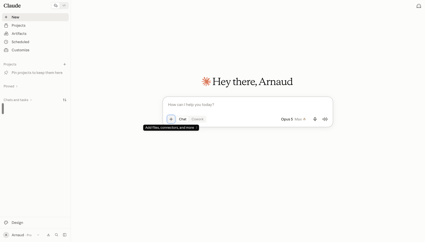
2. Select "Connectors", then "Browse connectors" to view available integrations.
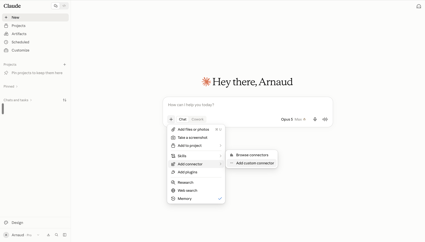
3. Locate "Getfluence" in the connector list and select it to begin the connection.
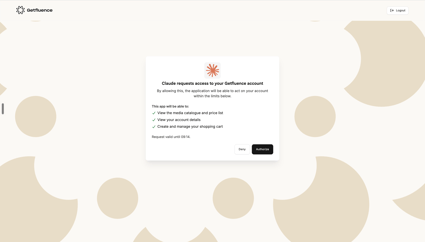
4. If you are not yet logged into your Getfluence account, you will be prompted to sign in before proceeding. On the authorization screen ("Claude requests access to your Getfluence account"), review the requested permissions (media catalogue and pricing, account details, cart management) and click "Authorize" to confirm.
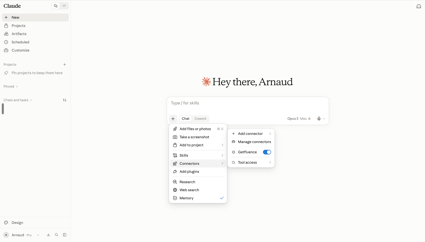
Getfluence will then appear in your list of active connectors. Ensure the toggle is switched on to enable it for your current session.
📌 Note: Access is strictly limited to the permissions displayed on the authorization screen. You can disable the connector at any time from "Manage connectors" within your AI assistant settings.